Join Team Edition from your local machine.
This is the member path. Your admin has already deployed Team Edition and will send you a server URL plus a device token. You will pair one local machine, decide which projects are visible, and watch the first aggregate push.
Pairing does not upload raw transcripts. The onboarding screen shows the boundary before you choose projects, and nothing syncs until you select a scope and press Start syncing.
What your admin should send you
Server URL
For example, https://fleetlens.example.com. It should use HTTPS in a real team deployment.
Device token
A private token created by the admin from the Team Edition dashboard. Treat it like a password and do not post it in chat or an issue.
Project policy
Know which repositories are safe to share. You choose the actual scope on this machine during onboarding.
Local prerequisite
Fleetlens must be installed. If not, finish the beginner setup first.
1. Start the local dashboard
Open a terminal and start Fleetlens. This makes the local Team page and onboarding screen available:
fleetlens start --openIf it is already running, leave it running. The join command can also start the local services when needed, but starting them first makes the flow easier to see.
2. Pair the machine
You get a server URL and device token one of two ways:
Opening it lands on a signup screen with your email already filled in and locked, under a heading like "Join Orbit Shop." If no invite is attached and public signup is closed, the screen instead tells you to ask your admin for one.
If you already have a Team Edition account and just need to (re)pair a machine, sign in to the team dashboard, open its Settings, and use "Pair your CLI." It mints a fresh token and shows you the exact join command once, with a copy button — copy it immediately, because minting a new token instantly revokes the previous one, and any other machine still using the old token stops syncing.
Either way, replace the two placeholders with the values you were given:
fleetlens team join <server-url> <device-token>For example, the shape is:
fleetlens team join https://fleetlens.example.com TOKEN_FROM_ADMINThe CLI checks the token, records the pairing locally, starts the daemon if necessary, and opens http://localhost:3321/team/onboarding. Nothing is sent yet.
Joining also switches on background auto-start for the local daemon, so it keeps checking in every five minutes even after this machine reboots — you won't need to remember to relaunch Fleetlens. You can turn auto-start back off from the local Settings page at any time without affecting your pairing.
The token is a credential for this member device. If it is exposed, ask your admin to revoke it and issue a new one.
3. Read the “What happens” screen
The first onboarding step lists the aggregate metrics that may be shared and the details that remain on this machine. Take a moment to confirm that the list matches your team policy, then choose Continue.
- Shared: agent time, sessions, tools, turns, token totals, project totals, daily working-shape counts, PRs, commits, pushes, usage percentages, and sync health.
- Local: transcripts, prompts, assistant responses, code, absolute paths, file contents, tool payloads, and excluded projects.
4. Choose which projects sync
Fleetlens lists projects discovered on this machine. Deselect repositories that should remain private. You can choose either:
Only the repositories you explicitly choose will sync. New projects remain private until added.
Current projects sync except those you exclude, and future projects are included by default. Use this only when that is your team policy.
Choose Continue when the summary shows the right count of projects.
5. Start the first sync
The final screen shows the projects in scope and reminds you that the push runs every five minutes after setup. Choose Start syncing to begin the one-time history backfill.
You will see progress such as usage history checks and individual local days being pushed. A computer with no previous agent history can finish successfully with zero activity days; the daemon will collect new sessions from then on.
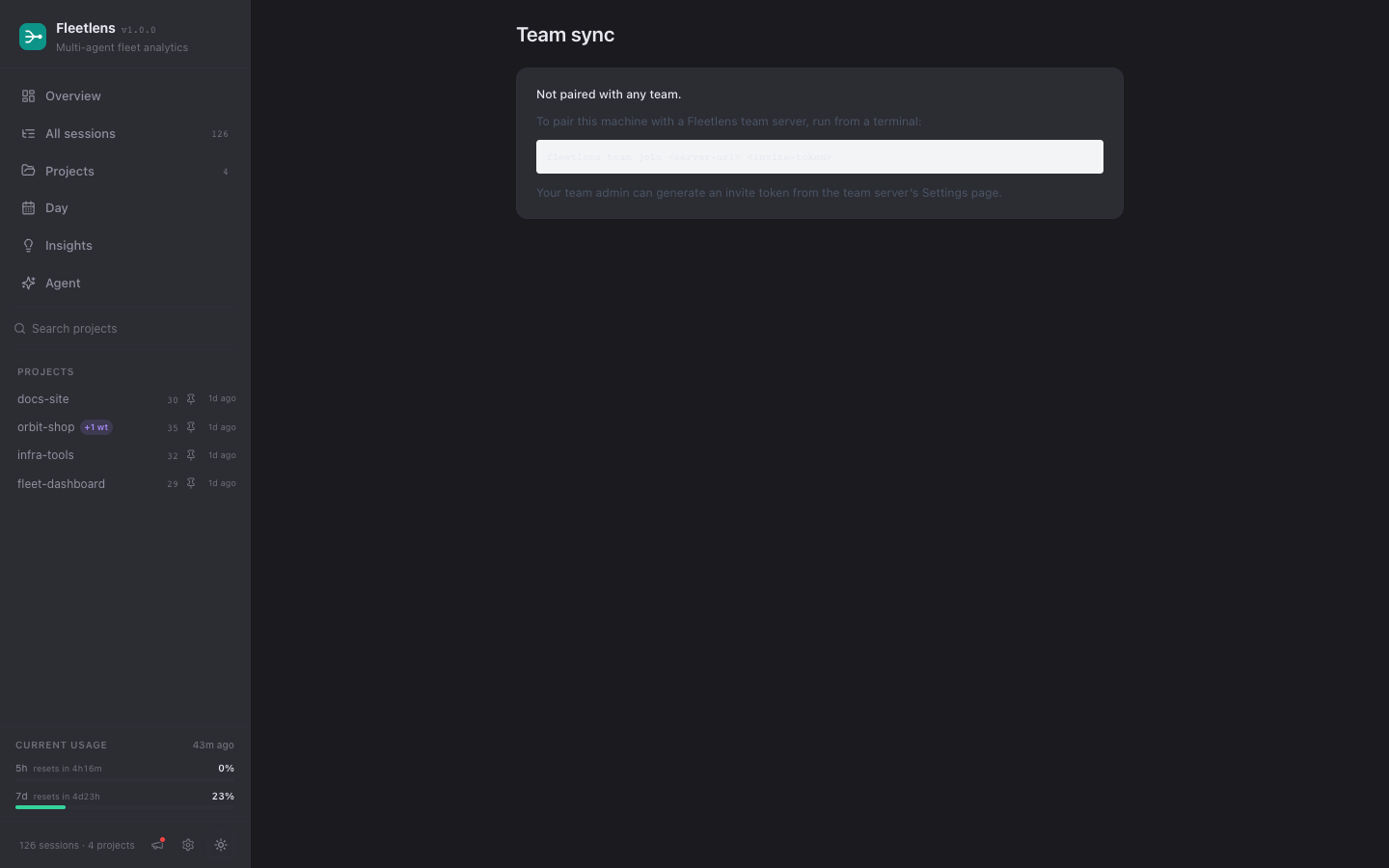
The Team page is the local control surface. This image shows the safe unpaired state with the join command it walks you through.
6. Verify the result
After the browser says the sync is complete, the local Team page switches from the unpaired view you saw earlier to a connected view — the fastest way to confirm sync is healthy without a terminal.
The top card shows a green Connected label plus:
| Field | What it tells you |
|---|---|
| Team and server URL | Which team and server this machine is pushing to. |
| Member ID | Your identity on the server side. |
| Token | Shown masked — only the first and last few characters, never in full. |
| Paired at | When this machine first joined. |
| Last day pushed | The most recent local day the server has received. |
| Last usage snapshot | When your plan-utilization percentages were last recorded. |
If onboarding never finished, an amber banner replaces the rest of the page and links back to it — nothing syncs until that clears.
Below the status card, a sync activity panel shows a health dot that ages from green (pushed in the last 15 minutes) through amber (15–60 minutes, or no push yet) to red (over an hour, or the last push failed). Once a push has succeeded, the panel lists what it contained — agent time, session count, tool calls, turns, token total, and your plan tier for that day — and a collapsible "Show raw JSON payload" link lets you inspect the exact data that was sent. A Sync now button forces a push outside the five-minute cycle and streams the result inline.
Use the Sync now button on the Team page, or run fleetlens team sync from a terminal. If the server is temporarily unavailable, Fleetlens keeps the local dashboard working and retries supported payloads later.
From a terminal, the same status is available without opening a browser:
fleetlens team status
fleetlens team logs
Open the team dashboard link shown by onboarding or use the URL your admin gave you. Your selected project rollups should appear after the server processes the push.
Two more places confirm sync at a glance. A small colored dot sits at the bottom of the sidebar on every page, next to your team's name, aging through the same green/amber/red schedule — hover it for the exact last-sync time, click it to jump back to the Team page. The first time you load the dashboard home after your first successful sync, a one-time banner also restates what is and is not shared, with a link back to the full explanation; dismissing it is permanent unless you pair again later.
How sync keeps itself healthy
Once paired, syncing runs on its own and rarely needs attention. A few behaviors are worth knowing:
- Cadence. The daemon checks in every five minutes — once right after pairing to backfill history, then on the regular timer, plus any time you or an admin forces one.
- Unreachable server. A push that can't reach the server is queued and retried on the next check-in instead of lost. A push the server actively rejects (bad data, not a network blip) is dropped rather than retried forever.
- Self-healing history. If an earlier attempt left a day unpushed, the daemon retries one such day per check-in on its own, so a later server-side fix can recover data an older sync missed.
- Admin-requested backfills. If your admin needs a range of days resent — after a data correction on their end, for example — your daemon fulfills that automatically on its next check-in. There's no approval prompt, but it still only resends what your current project selection allows.
Change the scope later
Open the local Team page, edit the synced-project selection, and save it. Changing the selection causes Fleetlens to rebuild the next payload so a newly private project is not sent again.
To disconnect this machine completely:
fleetlens team leaveIf you are the person responsible for the shared server, read Deploy Team Edition as an admin. If you want to understand the boundary in detail, read the privacy model.